
Experiments & the workspace
Every dataset in Cytely lives in an experiment. Here's how experiments are organized, what the tabs inside one do, and which controls are always within reach.
The dataset list
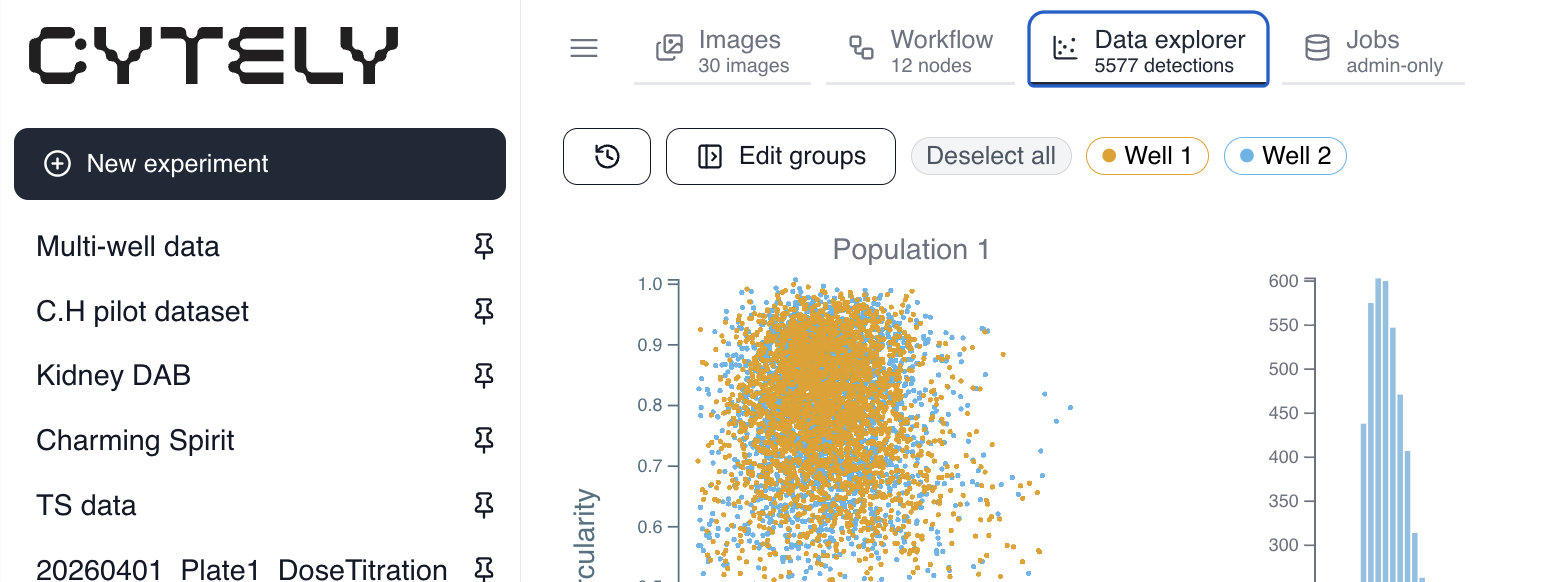
The left sidebar lists every dataset you have access to. A dataset bundles a set of images, the workflow that analyzes them, and the Data explorer layout built on the results - so a whole study stays in one place.
The ... menu on each entry lets you pin a dataset to the top of the list, rename it, or delete it. Pinning is the simplest way to keep the handful of studies you are actively working on above older archives.
Adding a new dataset
Click + New experiment at the top of the sidebar to create another dataset. This is available at any time, including when you already have datasets open.
Tabs inside a dataset
- Images - upload, organize, and review the raw fields. See Uploading & reviewing.
- Workflow - the node-based analysis pipeline. See Workflow builder. This tab is not available to every account - see Who can build workflows.
- Data explorer - plots, gates, and per-object inspection of the results. See Data explorer.
Global controls
The controls in the top-right corner are available from most tabs, so you rarely have to navigate away from what you are doing.
- Microscope control - lists the microscopes connected to your account, each with an online or offline indicator, for live acquisition through Cytely Bridge.
- Export - downloads the per-object measurement table as CSV. See Exporting & sharing.
- Share - generates a read-only public link and copies it to your clipboard immediately. There is no confirmation dialog, so treat one click as publishing the view.
- Replicate - creates a new replicate of the experiment, either by uploading fresh data or by including existing data, so a proven setup can be rerun on the next batch.